Photographer Booking on WhatsApp: Manage Your Shoot Calendar
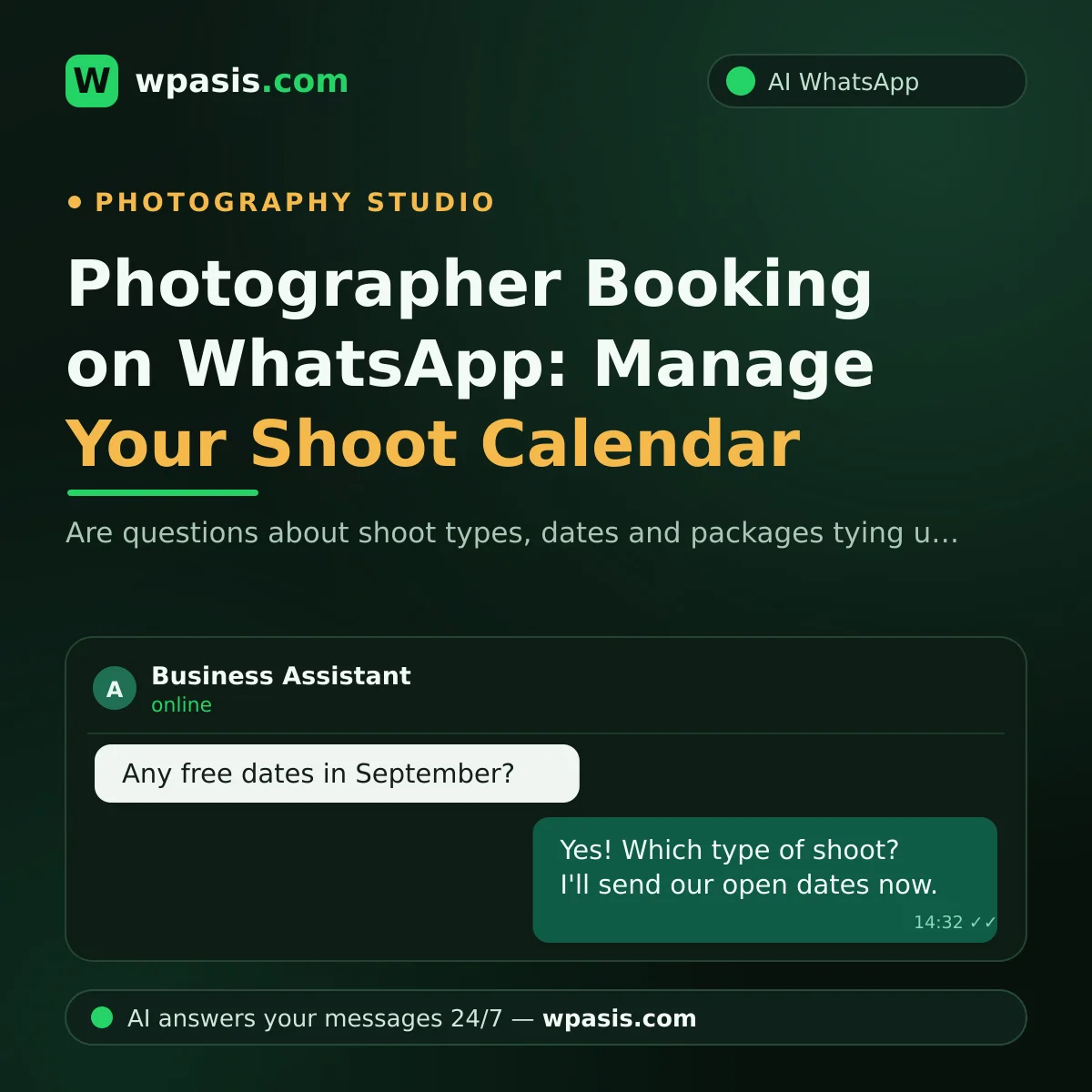
You're in the middle of wedding season. An outdoor shoot in the morning, a newborn session in the studio in the afternoon, and last week's photo selection to finish by evening... Meanwhile your phone won't stop buzzing: "Do you have any free dates in September?", "What's included in the outdoor package?", "Do you shoot engagements too?" Most photographer booking requests now arrive over WhatsApp — but you can't type a message while you're pressing the shutter. And every late reply is often a client who booked another studio instead.
In this guide, we'll walk through how an AI assistant connected to your existing WhatsApp line handles shoot bookings on your behalf: how it answers questions about shoot types, dates and packages, and how it makes letting clients know their album is ready so much easier.
The Hidden Cost of Booking Questions
For most self-employed photographers, the day is spent on location. Messages only get answered late at night, in one tired batch. Here's the problem: a couple looking for a wedding or engagement photographer usually messages several photographers at once. Whoever replies first starts the conversation — and usually lands the job.
Let's say you get 30 messages a day. A big share of them circle around the same three questions: "Are you free on this date?", "What kinds of shoots do you do?", "What's included in your packages?" Typing the same answers out one by one can easily eat an hour of your evening. And that hour isn't spent shooting or resting — it's just unpaid overtime spent repeating the same information again and again.
There's something even more frustrating: the clients who message at night, on weekends, or while you're mid-shoot. You can't tell them "I'm busy," but you can't reply instantly either. That's exactly the gap you need a helper to fill.
Then there's the seasonal side of the business. Weddings peak in spring and summer; demand is highest exactly when your time is tightest. In winter the message traffic thins out, but every enquiry that comes in matters even more. So there's no time of year when you can say "the messages can wait" — when it's busy you can't keep up, and when it's quiet you can't afford to miss a single one.
How Photographer Booking Runs Itself on WhatsApp
WpAsis is an AI assistant that connects to your business's existing WhatsApp line by scanning a QR code. Your number doesn't change, and your clients keep messaging you where they always have. You don't need to write code or have any technical background.
Setup: Scan the QR Code, Leave the Rest to the Assistant
Setup is a lot like the QR step when you link WhatsApp to a computer: you open the panel, scan the QR code with your phone, and your line is connected to the assistant. Then you tell the system about your business — the types of shoots you offer, your working days, what's in each package, your delivery times. From then on, the AI answers incoming messages on your behalf, around the clock.
Shoot Type and Date Questions
The assistant asks the client which shoot they want: wedding, engagement, outdoor, newborn? Then it takes their preferred date and creates a booking request. You see the incoming requests in the panel and approve them against your own calendar. Even if a client messages at 11pm, they don't meet an indifferent silence — they find someone who takes their questions seriously.
Package Questions
"How many hours of shooting are in the outdoor package?", "Is an album included?", "How many edited photos do I get?" — questions like these are answered exactly as you've written them in your knowledge base. Pricing is your call: you can set the assistant up to explain what's in each package and leave the price conversation to you.
The Quality of the Answers Depends on Your Knowledge Base
The AI assistant runs on what you teach it. The clearer you spell out your shoot types, your packages, the areas you cover, your delivery times and your frequently asked questions, the more accurate its answers will be. We've got a detailed guide to help with exactly that: how to build your business knowledge base.
A small tip: jot down the questions clients have asked over the past month. Once you see how often the same question comes up, what belongs in your knowledge base becomes obvious on its own.
"Album Ready" Alerts: End the "When Will My Photos Be Ready?" Question
The shoot ends, and the real wait begins. The client is excited — that's completely natural — but when the "Are the photos ready?" message arrives for the third time and you're still in the editing stage, writing out the same explanation every time gets tiring.
The assistant knows your delivery process from your knowledge base: it politely explains how long the selection usually takes and how the album printing is coming along. And when the album is ready, you simply open the conversation in the panel and share the good news in a single message. When a client checks in for an update, the assistant gently sums up where things stand — you don't have to keep up with every message one by one.
This small detail counts for a lot in the client's eyes: a client who's kept informed throughout the process will tell people not just about your photos, but about how well you communicated too.
Watch From the Panel, Step In Whenever You Want
Every conversation sits on one screen in the panel. Who's asked for a booking, who's asked about packages, who's waiting for their album — you see it all at a glance. When a special request comes in — say, an unusual location or a different concept to discuss — you take over the conversation with a single tap and carry on as a human.
Multi-language support can come in handy too: if a couple messaging from abroad, or a client planning a destination wedding, writes in their own language, the assistant replies in that language.
The panel is also your business's memory: what you discussed with which client, which package you suggested, which date you promised — it's all on record. You won't waste time scrolling up and down on your phone months later trying to find a conversation you need to revisit.
If you'd like a closer look at how the auto-reply logic is set up, take a look at this guide: how to set up WhatsApp auto-reply.
Frequently Asked Questions
Do I need technical knowledge to set up an AI assistant?
No. Setup comes down to connecting your WhatsApp line by scanning a QR code and typing your business details into the panel. There's no code to write, no server to set up, and no technical jargon to learn.
How will the assistant know which dates I'm free?
You define your working pattern and your booking rules in the knowledge base. The assistant takes booking requests within that framework; the final approval is always yours and is managed from the panel.
Won't clients be put off if they realize they're talking to an AI?
What really puts clients off is being left with no reply at all. A client who gets a clear, polite answer within seconds cares far more about the outcome than about how the process works. And if you like, you decide how the assistant introduces itself.
Will I miss booking requests that come in while I'm shooting?
No — if anything, you may be missing them today. The assistant handles requests while you're shooting, collects the details you need and drops them into the panel. When you're free, all you have to do is review the requests and approve them.
In photography, the most valuable part of your work is the moment in the viewfinder — not the message traffic. If you'd like to hand your incoming questions to AI and focus on the frame, you can try the free demo at wpasis.com. For current pricing, just head to wpasis.com.