How to Set Up WhatsApp Auto Reply: A Step-by-Step Guide
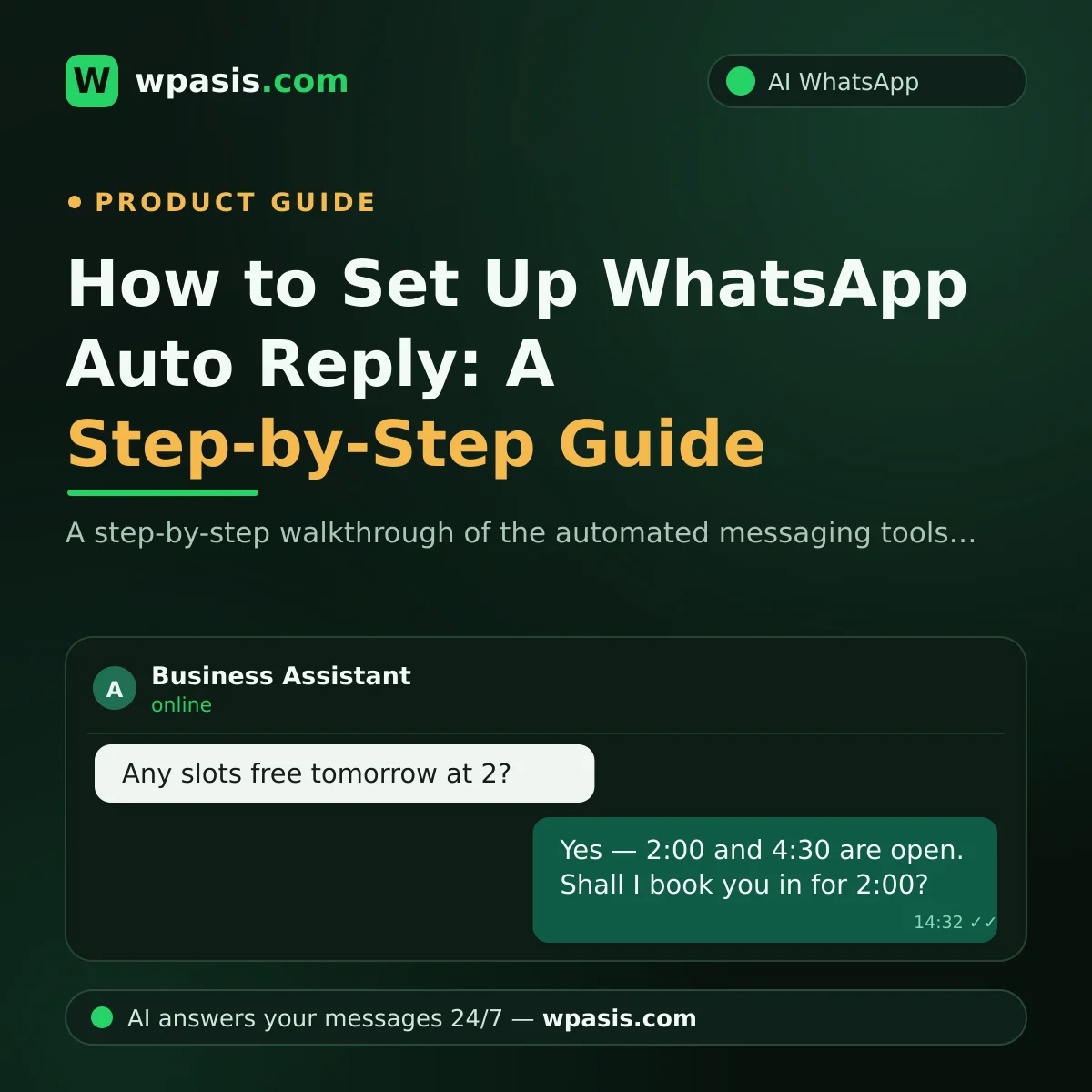
Your customers don't ring the shop anymore. They message. And while you're mid-haircut, plating up an order, or dealing with the person standing right in front of you, those messages pile up unanswered. This is exactly where WhatsApp auto reply comes in: the moment a customer writes, a response goes out without you touching your phone.
In this guide we'll walk through setting up the automated messaging tools built into the WhatsApp Business app, show you where those tools run out of road, and explain what an AI-powered assistant does differently. No technical knowledge needed — if your phone is next to you, you can set this up while you read.
First Requirement for WhatsApp Auto Reply: WhatsApp Business
Let's start with an important detail: regular WhatsApp (the standard green-icon app) has no auto reply feature. Automated messaging tools live in WhatsApp Business, the free app built for businesses.
If you're still taking customer messages on your personal WhatsApp, switching to WhatsApp Business is job one. The app downloads free from your phone's app store and you can bring your existing number across. If you're curious about how the two apps differ, have a look at our piece on what WhatsApp Business is and how it differs from regular WhatsApp.
WhatsApp Business gives you three core automated messaging tools:
- Greeting message: An automatic welcome sent to a customer messaging you for the first time.
- Away message: An automatic reply to messages that arrive while you're closed.
- Quick replies: Shortcuts for the answers you type over and over.
Let's set them up one at a time.
Step by Step: Setting Up Automated Messages in WhatsApp Business
All of these settings live under Business tools inside the app. The general route: open WhatsApp Business, go to Settings, and find the Business tools section. Menu labels shift slightly between app versions, so if you can't find a particular setting, look inside Business tools under Settings.
1. Greeting Message: Put Your First Impression on Autopilot
Inside Business tools, open the greeting message setting and switch it on. This is where you write the text a first-time customer will see.
An example: "Hi there! We've got your message and we'll get back to you as soon as we can. For anything urgent, give us a call." You can also choose who receives it: everyone, everyone not in your contacts, or everyone except specific people you pick.
The greeting message doesn't only go to first-timers. It's sent again to customers you haven't exchanged messages with for a long stretch — so people returning after a long gap get a welcome too.
2. Away Message: Don't Leave Customers Hanging After Hours
The away message automatically replies to anything that arrives while you're unavailable. It's switched on from Business tools as well; if the label looks slightly different in your app, look for the option with "away" in the name.
You get three scheduling options:
- Send always: Handy when you're on holiday or shut for a while.
- Custom schedule: Sent during the hours you specify.
- Outside of business hours: If you've entered opening hours on your business profile, it kicks in automatically whenever you're closed.
Example text: "Hi, we're closed at the moment. Our hours are Monday to Friday, 9am to 7pm. We've got your message and we'll come back to you as soon as we open."
3. Quick Replies: One-Tap Answers to the Usual Questions
Quick replies aren't strictly "automatic," but they save real time. You attach the answers you type most often — directions, opening hours, your list of services — to shortcuts. Type / in the message box and your shortcuts appear; pick one and the text drops in ready to send.
For example, save your location and directions under "/address." When a customer asks "Where are you?" you've answered in three seconds. We've covered which questions deserve prepared text, with examples, in our post on auto reply templates for frequently asked questions.
The Limits of WhatsApp's Auto Reply Tools
These tools are a good start, but the name gives them away: they're fixed-message tools. Once you start using them, you'll run into these limits.
They can't answer a question. Greeting and away messages send the same text no matter what the customer wrote. When someone asks "Do you have anything free tomorrow at 2?" the reply they get is still "We've got your message, we'll come back to you soon." The question goes unanswered, and it lands back on your desk anyway.
They can't hold a conversation. An automated message is a single shot. When the customer replies to it, there's nobody on the other end. Booking an appointment or pinning down an order — anything that needs back-and-forth — can't be done with these tools.
They depend on your phone. For automated messages in the WhatsApp Business app to go out, your phone needs to be connected to the internet. If it's switched off or offline, nothing sends.
Quick replies still cost you your time. The text may be prepared, but you still have to see the message, pick the shortcut and hit send. A question that lands at 11pm doesn't get a quick reply on its own.
In short: these tools automate saying "got your message." They don't automate looking after the customer.
What an AI Assistant Does Differently: Real Conversation, Not Canned Text
If you've hit the limits above, the next step up is an AI-powered WhatsApp assistant. Think of the difference this way: an away message is a note taped to the door ("Out at the moment, pop back later"). An AI assistant is a member of staff standing at that door, answering questions and keeping the appointment book.
An AI assistant like WpAsis connects to your business's existing WhatsApp line; setup is done by scanning a QR code — no code and no technical knowledge required. Once it's connected:
- It answers incoming customer messages on your behalf, 24/7, with real answers — not "we've got your message," but a response to the actual question.
- It takes appointments and orders, and answers frequently asked questions.
- It draws on your own business information: your website is scanned, and the assistant answers questions about your services and how you work using your details.
- It supports multiple languages, so a customer writing in Spanish doesn't go unanswered.
- You watch every conversation from the panel, and you can take over as a human whenever you like.
Say you've got a hair salon taking 30 messages a day — and this is a purely hypothetical scenario. A good chunk of those are repeats: "What time are you free?", "Anything available tomorrow?" An away message sends all 30 people the same sentence. An AI assistant answers each question individually and books in the ones who fit.
Which One Is Right for You? A Simple Decision Guide
The two options aren't rivals. They answer different needs.
WhatsApp Business's own tools may be enough if: your message volume is low, you're already replying to most of them quickly yourself, and your customers mainly just want confirmation that their message arrived. Start here.
Consider an AI assistant if: you can't keep up with the messages, you're losing customers because after-hours questions go unanswered, and your appointment or order traffic runs through WhatsApp. Past a certain point, fixed messages simply don't stretch.
The sensible path is in that order: set up the WhatsApp Business tools today — they're free and take ten minutes. When your message traffic grows, you'll see for yourself exactly where fixed messages start to jam.
If you're wondering how an AI assistant would fit your business, visit wpasis.com for details and current pricing.
Frequently Asked Questions
Can I set up auto reply on regular WhatsApp?
No. Greeting messages, away messages and quick replies exist only in the WhatsApp Business app. If you're on regular WhatsApp, you'll need to switch to the free WhatsApp Business app first — you can bring your existing number with you.
Does WhatsApp auto reply cost anything?
The WhatsApp Business app and the greeting message, away message and quick replies inside it are free. AI-powered assistants generally run on a monthly subscription; for WpAsis's current pricing, visit wpasis.com.
Does auto reply actually answer the customer's question?
WhatsApp Business's own automated messages don't. Whatever the customer asks, they get the fixed text you wrote in advance. If you want the question itself answered, you need an AI-powered assistant — these draw on your business's information to produce a specific reply to each question.
Do automated messages still send when my phone is off?
For automated messages in the WhatsApp Business app to go out, your phone needs to be on and connected to the internet. If it's switched off, messages won't send until the connection returns. With cloud-based AI assistants this dependency varies by how setup works — it's one of the questions worth asking when you choose a solution.